> ## Documentation Index
> Fetch the complete documentation index at: https://docs.flowstep.ai/llms.txt
> Use this file to discover all available pages before exploring further.
# Edit and iterate on Flowstep designs via chat or canvas
> Refine any Flowstep-generated screen through manual visual editing or chat-based prompts — iterate as many times as needed until the design is right.
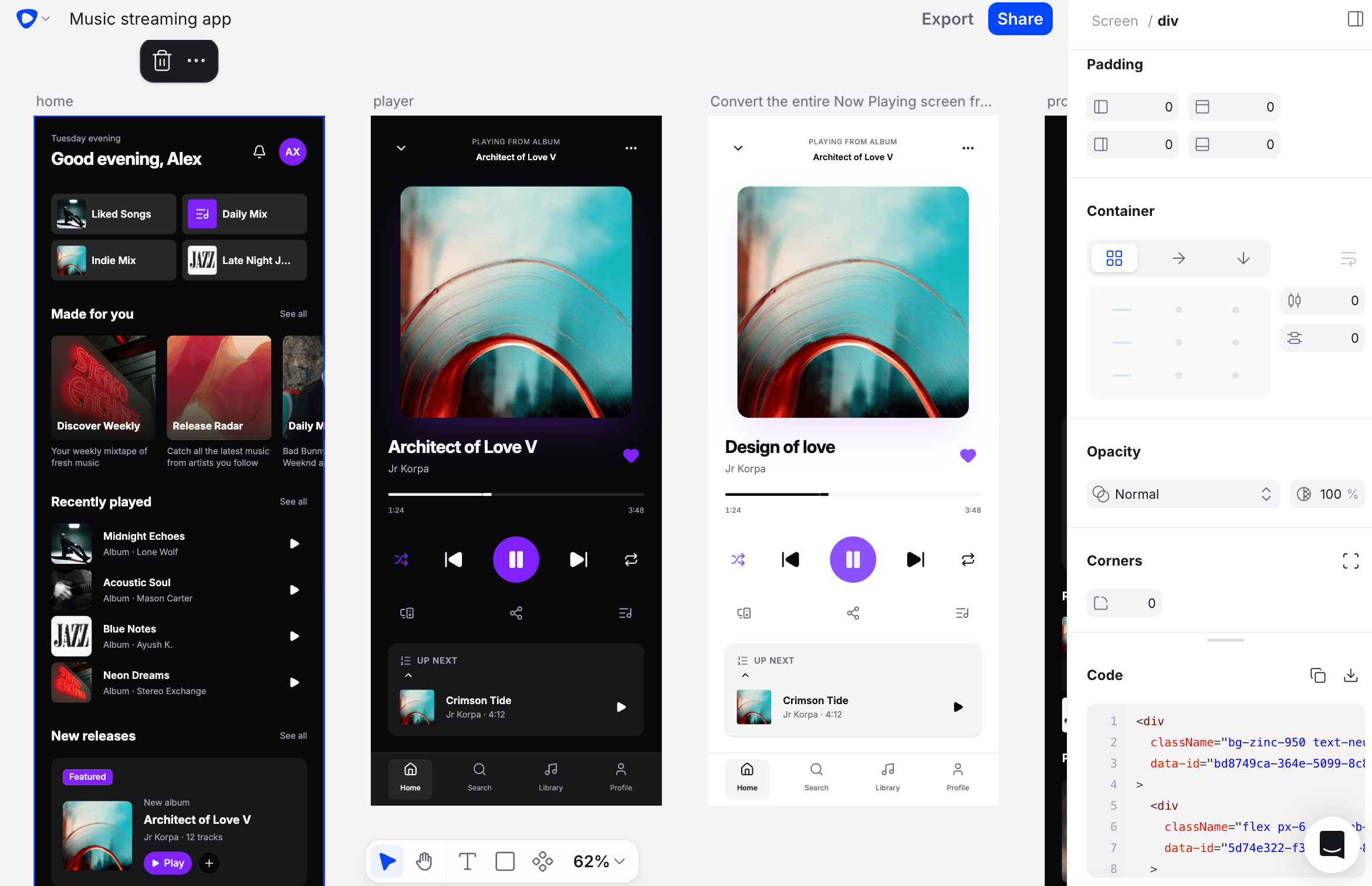 Flowstep designs are fully editable after generation. You are not locked into what the AI first produces—you can adjust visuals directly in the editor, use chat to describe changes in plain language, or ask Flowstep to generate variations and new screens. Use whichever method fits the change you want to make.
## Two ways to edit
Make changes directly on the canvas by selecting and modifying elements. This method works best for precise adjustments—moving a component, changing a color, updating a label, or tweaking spacing.
Click on any component or layer in your design to select it.
Use the editor controls to adjust properties such as color, size, position, or text content.
Your changes apply immediately on the canvas. Continue editing or move on to the next screen.
Describe the change you want in plain language and Flowstep updates the design for you. This method is faster for broad or structural changes—adjusting the layout, rethinking a section, or applying a style direction.
Select the screen you want to edit, then open the chat input.
Type what you want Flowstep to update. Be specific about what should change and why, if it helps.
Flowstep applies the change and shows you the result. If it is not quite right, send a follow-up message to refine further.
Edits and regenerations update the selected screen **in place** rather than adding a new screen — while Flowstep streams the change, the element it's currently working on is highlighted with a green dashed border. Generating without a screen selected adds a new screen instead.
## Edit just part of a screen
You don't have to edit whole screens. Select a sub-element — a card, a button, a text label — and your chat prompt applies only to it, leaving the rest of the screen untouched.
* Switch to **Direct selection** mode with **Shift+V** (or the dropdown on the Select toolbar button) to select the deepest element under your click. Press **V** for normal selection, or hold **Cmd** (Mac) / **Ctrl** (Windows) to use direct selection temporarily. **Escape** exits direct selection.
* Select sub-elements across multiple screens with **Cmd+Shift** — a single prompt can edit up to 6 screens per message.
When an image element is selected (outside wireframe mode), an **Image** panel appears in the property panel: preview the image, swap it by dragging a new image file onto the preview or clicking **Pick image**, or save it with **Download image**.
## Restore a previous version
Each AI generation in the chat history keeps its original result. If a screen has been edited or deleted since it was generated, its chat message shows a **Restore** button — **Restore original** to revert edits, or **Restore** / **Restore all** to bring back deleted screens. Use it to get back to a known-good state after an edit goes in the wrong direction.
## One-click actions
Flowstep designs are fully editable after generation. You are not locked into what the AI first produces—you can adjust visuals directly in the editor, use chat to describe changes in plain language, or ask Flowstep to generate variations and new screens. Use whichever method fits the change you want to make.
## Two ways to edit
Make changes directly on the canvas by selecting and modifying elements. This method works best for precise adjustments—moving a component, changing a color, updating a label, or tweaking spacing.
Click on any component or layer in your design to select it.
Use the editor controls to adjust properties such as color, size, position, or text content.
Your changes apply immediately on the canvas. Continue editing or move on to the next screen.
Describe the change you want in plain language and Flowstep updates the design for you. This method is faster for broad or structural changes—adjusting the layout, rethinking a section, or applying a style direction.
Select the screen you want to edit, then open the chat input.
Type what you want Flowstep to update. Be specific about what should change and why, if it helps.
Flowstep applies the change and shows you the result. If it is not quite right, send a follow-up message to refine further.
Edits and regenerations update the selected screen **in place** rather than adding a new screen — while Flowstep streams the change, the element it's currently working on is highlighted with a green dashed border. Generating without a screen selected adds a new screen instead.
## Edit just part of a screen
You don't have to edit whole screens. Select a sub-element — a card, a button, a text label — and your chat prompt applies only to it, leaving the rest of the screen untouched.
* Switch to **Direct selection** mode with **Shift+V** (or the dropdown on the Select toolbar button) to select the deepest element under your click. Press **V** for normal selection, or hold **Cmd** (Mac) / **Ctrl** (Windows) to use direct selection temporarily. **Escape** exits direct selection.
* Select sub-elements across multiple screens with **Cmd+Shift** — a single prompt can edit up to 6 screens per message.
When an image element is selected (outside wireframe mode), an **Image** panel appears in the property panel: preview the image, swap it by dragging a new image file onto the preview or clicking **Pick image**, or save it with **Download image**.
## Restore a previous version
Each AI generation in the chat history keeps its original result. If a screen has been edited or deleted since it was generated, its chat message shows a **Restore** button — **Restore original** to revert edits, or **Restore** / **Restore all** to bring back deleted screens. Use it to get back to a known-good state after an edit goes in the wrong direction.
## One-click actions
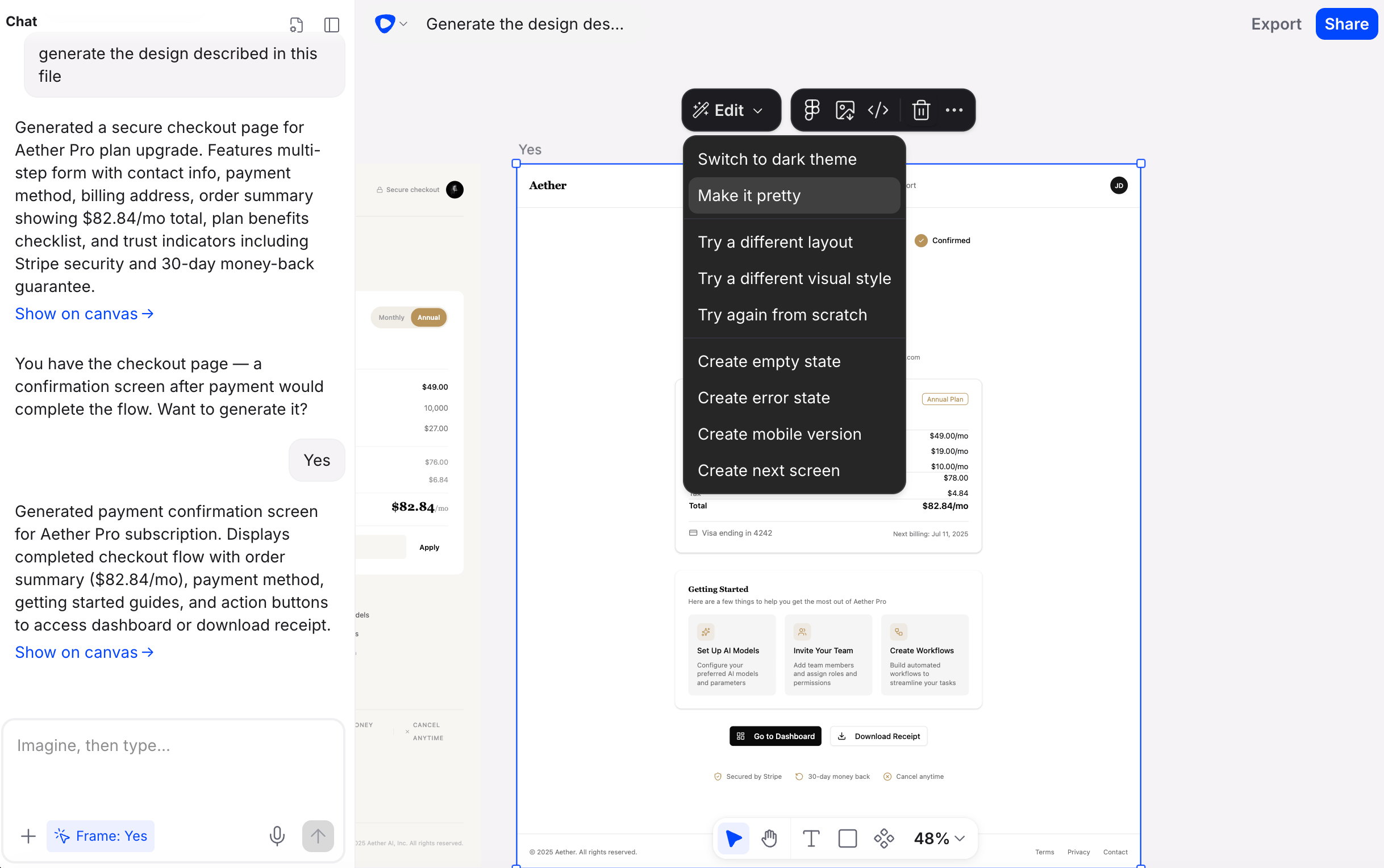 Beyond direct edits, you can ask Flowstep to explore alternatives:
* **Try again from scratch** — ask Flowstep to produce a fresh version of the current screen with a different layout or visual direction.
* **Show the next screen** — ask Flowstep to generate what logically comes next in the user flow.
* **Make it pretty** — adjust spacing, alignment, and colors across the design. Layout stays the same.
These options let you iterate rapidly without having to write a prompt each time.
## Iterating to refine
Design rarely lands perfectly on the first attempt. Use chat-based editing for each round of feedback—describe what is working and what is not, and Flowstep adjusts from there. There is no limit to how many times you can iterate on a screen.
When iterating via chat, reference specific elements by name or location to get more accurate results. For example: "Move the call-to-action button to the bottom of the screen and make it full-width" is more effective than "fix the button."
Beyond direct edits, you can ask Flowstep to explore alternatives:
* **Try again from scratch** — ask Flowstep to produce a fresh version of the current screen with a different layout or visual direction.
* **Show the next screen** — ask Flowstep to generate what logically comes next in the user flow.
* **Make it pretty** — adjust spacing, alignment, and colors across the design. Layout stays the same.
These options let you iterate rapidly without having to write a prompt each time.
## Iterating to refine
Design rarely lands perfectly on the first attempt. Use chat-based editing for each round of feedback—describe what is working and what is not, and Flowstep adjusts from there. There is no limit to how many times you can iterate on a screen.
When iterating via chat, reference specific elements by name or location to get more accurate results. For example: "Move the call-to-action button to the bottom of the screen and make it full-width" is more effective than "fix the button."