> ## Documentation Index
> Fetch the complete documentation index at: https://docs.flowstep.ai/llms.txt
> Use this file to discover all available pages before exploring further.
# Download Flowstep designs as JPG or PNG image files
> Flowstep supports exporting designs as JPG or PNG. Learn which format suits your use case and how to download your screens in a few clicks.
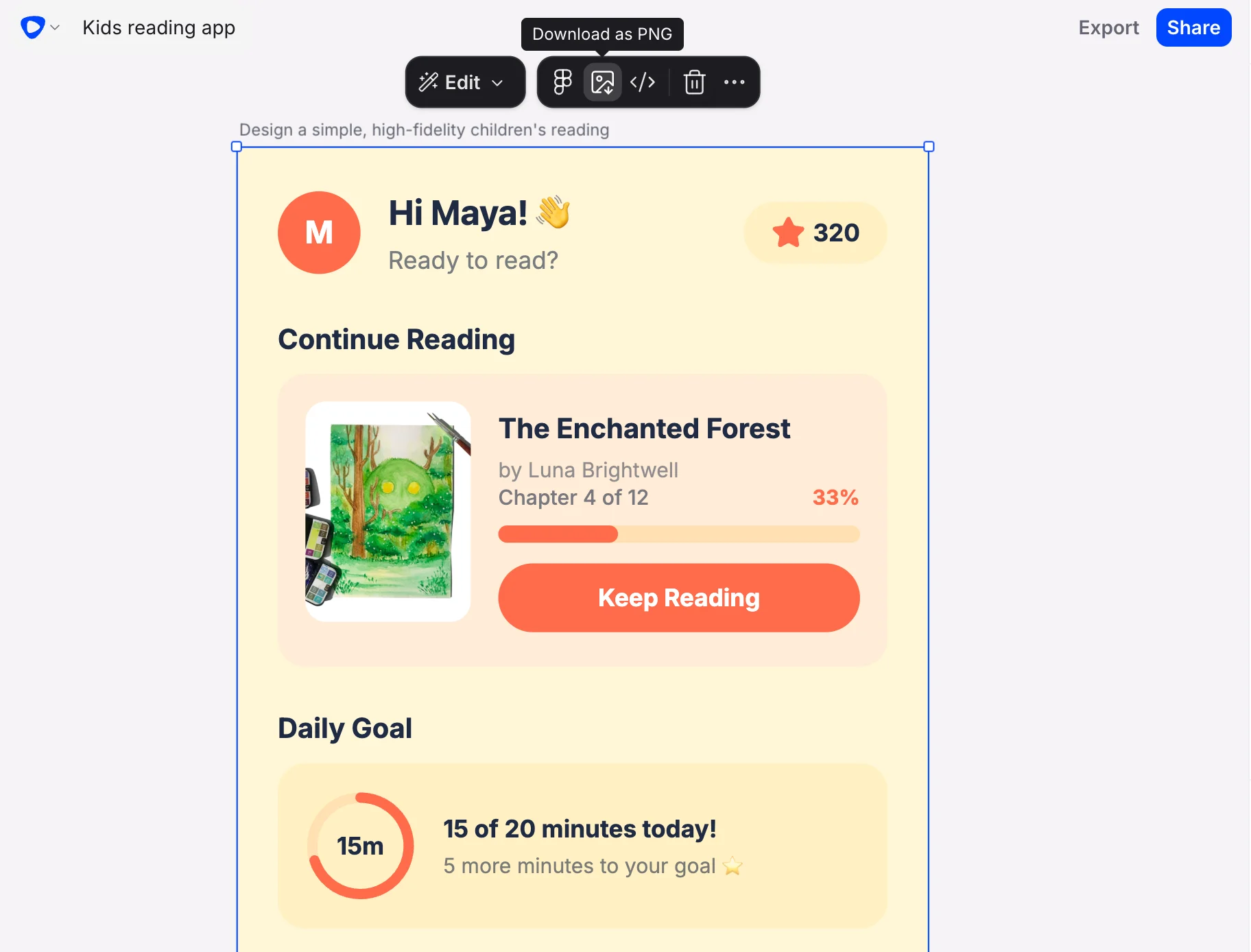 When you're ready to share or hand off a design, Flowstep lets you export it as a static image — either a JPG or a PNG. Both formats are widely supported across design tools, presentation software, and browsers, so you can take your AI-generated designs wherever you need them.
## How to export your design
Navigate to the design you want to export inside Flowstep.
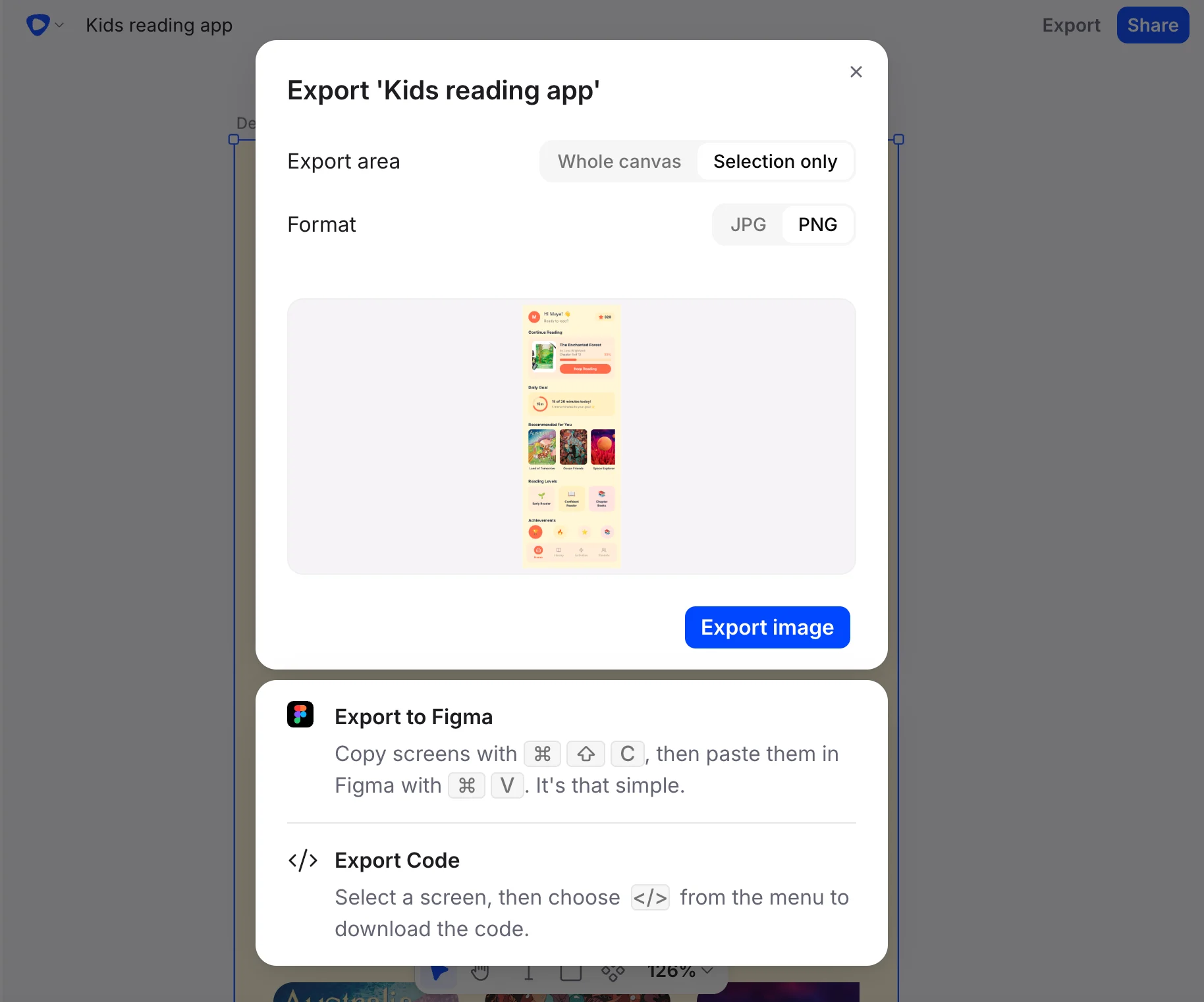
Locate the export option in the toolbar or design panel. Select it to open the export settings.
Select either **JPG** or **PNG** depending on your use case (see the comparison below).
Confirm your selection and download the exported image to your device.
When you're ready to share or hand off a design, Flowstep lets you export it as a static image — either a JPG or a PNG. Both formats are widely supported across design tools, presentation software, and browsers, so you can take your AI-generated designs wherever you need them.
## How to export your design
Navigate to the design you want to export inside Flowstep.
Locate the export option in the toolbar or design panel. Select it to open the export settings.
Select either **JPG** or **PNG** depending on your use case (see the comparison below).
Confirm your selection and download the exported image to your device.
 ## JPG vs PNG: which format should you use?
| | JPG | PNG |
| ---------------- | ---------------------------------------------------- | ------------------------------------------------------------ |
| **Best for** | Sharing previews, presentations, stakeholder reviews | Designs with transparent backgrounds, high-fidelity handoffs |
| **File size** | Smaller — faster to share via email or messaging | Larger — retains full image detail |
| **Transparency** | Not supported | Supported |
| **Quality** | Slightly compressed | Lossless — no quality reduction |
If you're pasting your design into a slide deck or sending a quick preview to a client, JPG is usually the right choice. If you need crisp edges or a transparent background — for example, to overlay the design on another image — use PNG.
## Export code
Beyond images, the **Code** button exports a screen as React + Tailwind code — copy a snippet, or download the full bundle as a ZIP. Bundles are self-contained: images used in the design (including ones you attached in the chat panel) are included in a `public/assets/` folder with the code referencing them by local path, so the export runs as-is.
Downloaded files — images and code bundles alike — are named after the screen they belong to (falling back to the file name if the screen is unnamed), which keeps exports easy to identify when you're working with many screens.
If you need to take your design into a vector editing workflow, copy it directly into Figma instead. See [Copy Flowstep designs into Figma instantly](/figma-integration).
## JPG vs PNG: which format should you use?
| | JPG | PNG |
| ---------------- | ---------------------------------------------------- | ------------------------------------------------------------ |
| **Best for** | Sharing previews, presentations, stakeholder reviews | Designs with transparent backgrounds, high-fidelity handoffs |
| **File size** | Smaller — faster to share via email or messaging | Larger — retains full image detail |
| **Transparency** | Not supported | Supported |
| **Quality** | Slightly compressed | Lossless — no quality reduction |
If you're pasting your design into a slide deck or sending a quick preview to a client, JPG is usually the right choice. If you need crisp edges or a transparent background — for example, to overlay the design on another image — use PNG.
## Export code
Beyond images, the **Code** button exports a screen as React + Tailwind code — copy a snippet, or download the full bundle as a ZIP. Bundles are self-contained: images used in the design (including ones you attached in the chat panel) are included in a `public/assets/` folder with the code referencing them by local path, so the export runs as-is.
Downloaded files — images and code bundles alike — are named after the screen they belong to (falling back to the file name if the screen is unnamed), which keeps exports easy to identify when you're working with many screens.
If you need to take your design into a vector editing workflow, copy it directly into Figma instead. See [Copy Flowstep designs into Figma instantly](/figma-integration).