> ## Documentation Index
> Fetch the complete documentation index at: https://docs.flowstep.ai/llms.txt
> Use this file to discover all available pages before exploring further.
# Move designs between Flowstep and Figma
> Copy any Flowstep frame into Figma with copy-and-paste, or import Figma frames into Flowstep as editable screens. Work across both tools without switching.
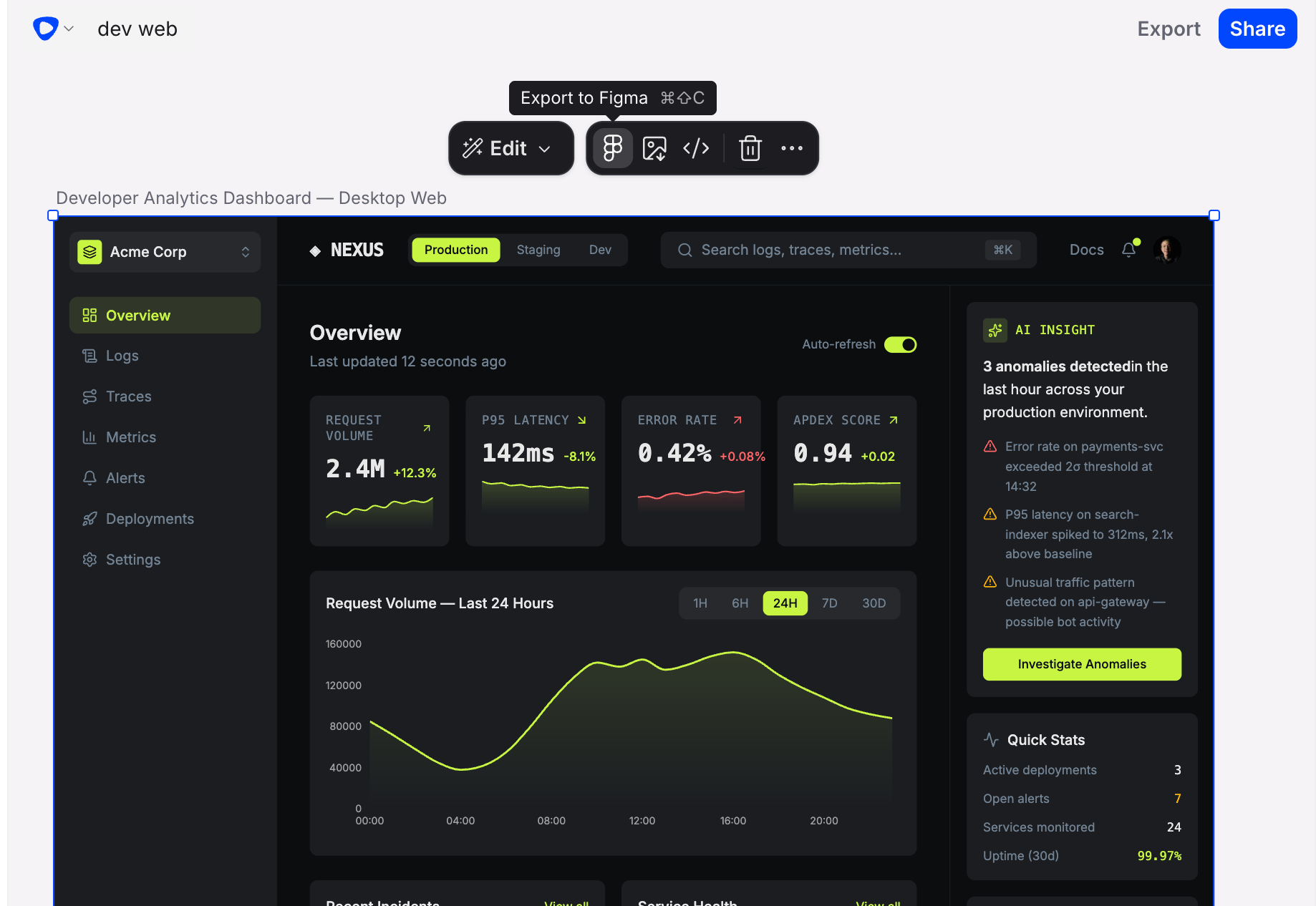 Flowstep is built to fit into the design workflow you already use — not to replace it. You can generate a design in Flowstep and immediately bring it into Figma using a simple copy-and-paste, or go the other way and import a Figma frame into Flowstep. This means you get the speed of AI-assisted design generation combined with the precision and collaboration features you rely on in Figma.
Flowstep and Figma are complementary tools, not competitors. Flowstep helps you rapidly generate and explore UI design ideas; Figma is where you refine, collaborate, and build out production-ready work. Using both together gives you the best of both.
## How to copy a Flowstep design into Figma
Click a screen to select it — or select several screens to copy them all in one go. Make sure the selection is highlighted in the canvas.
Press \*\*Cmd+\*\*⇧+**C** on Mac or \*\*Ctrl+\*\*⇧+**C** on Windows. Flowstep shows "Preparing your design — stay on this tab and keep the screen selected" while it works; the copy completes in a moment.
Switch to Figma and open the file where you want to place the design. Press **Cmd+V** on Mac or **Ctrl+V** on Windows to paste. The Flowstep screens appear on your Figma canvas, ready to edit.
Copying to Figma uses your browser's clipboard, so the browser must allow Flowstep clipboard access — if you see a permission error, allow clipboard access in your browser settings and try again. Switching tabs mid-copy interrupts the transfer; keep the Flowstep tab focused until the copy finishes.
Paste the frame onto a dedicated "AI imports" page in Figma to keep your working files organized. From there, you can move elements into your main design system or component library at your own pace.
## Import a design from Figma
You can also go the other way and bring a Figma frame into Flowstep as editable screens. Importing is available to everyone — connect your Figma account once, then import from a frame link.
Connect your Figma account to Flowstep from your settings. Flowstep uses Figma's authorization to read the files you have access to.
In Figma, right-click the frame you want and choose **Copy link to selection**. You can also copy a link to a whole page to import all of its top-level frames at once.
Use the Figma import option in the Flowstep toolbar and paste the link. Flowstep converts the frame into editable elements on your canvas. Re-importing the same frame updates it in place.
### What gets imported
Flowstep recreates a Figma frame as native, editable elements — not a flat image. An import brings across:
* Frames and their nested layers
* Text, including per-character styling like weight, colour, and bold
* Colours from your Figma variables
* Image fills, and SVG icons and shapes
* Drop and inner shadows, and layer and background blurs
* Dashed and dotted strokes
The file's organization must have Figma connected. If a frame won't import, Flowstep shows an actionable message that tells you what to do next — for example, reconnect Figma if your authorization has expired, wait and retry if Figma is rate-limiting or slow to respond, or, for a Community template, duplicate it to your team first and paste the new link.
Flowstep is built to fit into the design workflow you already use — not to replace it. You can generate a design in Flowstep and immediately bring it into Figma using a simple copy-and-paste, or go the other way and import a Figma frame into Flowstep. This means you get the speed of AI-assisted design generation combined with the precision and collaboration features you rely on in Figma.
Flowstep and Figma are complementary tools, not competitors. Flowstep helps you rapidly generate and explore UI design ideas; Figma is where you refine, collaborate, and build out production-ready work. Using both together gives you the best of both.
## How to copy a Flowstep design into Figma
Click a screen to select it — or select several screens to copy them all in one go. Make sure the selection is highlighted in the canvas.
Press \*\*Cmd+\*\*⇧+**C** on Mac or \*\*Ctrl+\*\*⇧+**C** on Windows. Flowstep shows "Preparing your design — stay on this tab and keep the screen selected" while it works; the copy completes in a moment.
Switch to Figma and open the file where you want to place the design. Press **Cmd+V** on Mac or **Ctrl+V** on Windows to paste. The Flowstep screens appear on your Figma canvas, ready to edit.
Copying to Figma uses your browser's clipboard, so the browser must allow Flowstep clipboard access — if you see a permission error, allow clipboard access in your browser settings and try again. Switching tabs mid-copy interrupts the transfer; keep the Flowstep tab focused until the copy finishes.
Paste the frame onto a dedicated "AI imports" page in Figma to keep your working files organized. From there, you can move elements into your main design system or component library at your own pace.
## Import a design from Figma
You can also go the other way and bring a Figma frame into Flowstep as editable screens. Importing is available to everyone — connect your Figma account once, then import from a frame link.
Connect your Figma account to Flowstep from your settings. Flowstep uses Figma's authorization to read the files you have access to.
In Figma, right-click the frame you want and choose **Copy link to selection**. You can also copy a link to a whole page to import all of its top-level frames at once.
Use the Figma import option in the Flowstep toolbar and paste the link. Flowstep converts the frame into editable elements on your canvas. Re-importing the same frame updates it in place.
### What gets imported
Flowstep recreates a Figma frame as native, editable elements — not a flat image. An import brings across:
* Frames and their nested layers
* Text, including per-character styling like weight, colour, and bold
* Colours from your Figma variables
* Image fills, and SVG icons and shapes
* Drop and inner shadows, and layer and background blurs
* Dashed and dotted strokes
The file's organization must have Figma connected. If a frame won't import, Flowstep shows an actionable message that tells you what to do next — for example, reconnect Figma if your authorization has expired, wait and retry if Figma is rate-limiting or slow to respond, or, for a Community template, duplicate it to your team first and paste the new link.