> ## Documentation Index
> Fetch the complete documentation index at: https://docs.flowstep.ai/llms.txt
> Use this file to discover all available pages before exploring further.
# Docs
> Flowstep generates production-ready UI from text prompts. Iterate via chat, export to Figma, or connect your IDE via MCP.
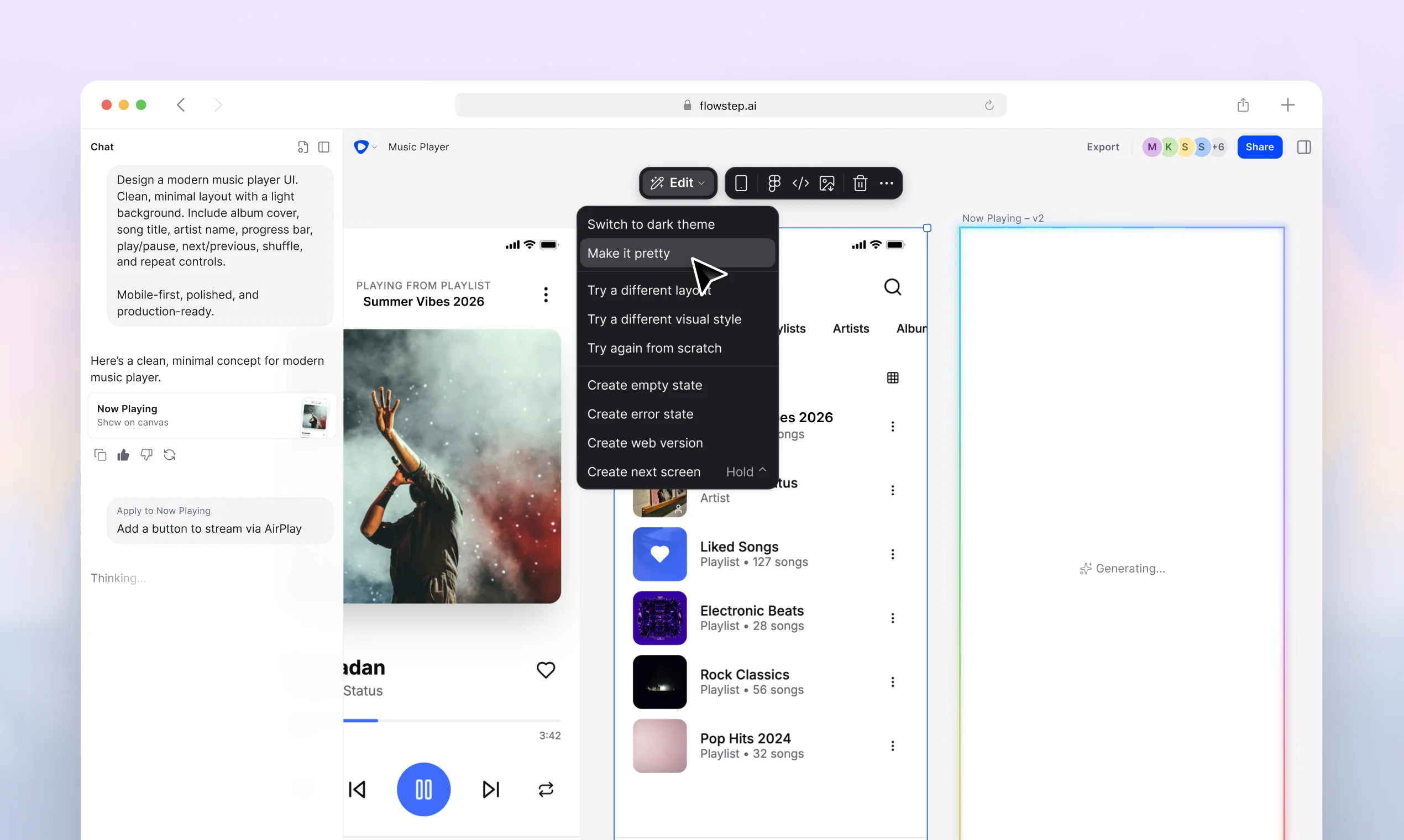 Flowstep generates production-ready UI screens from plain text prompts. Describe the screen you want — get a designed interface back in seconds. Iterate through follow-up prompts or direct edits, export to Figma or image files, and share with your team via a single link.
For developers and technical designers, Flowstep also runs as an [MCP server](/mcp/overview) — generate and edit screens directly from Cursor, Claude Code, Windsurf, or Claude Desktop without leaving your IDE.
Sign up for free and generate your first screen in minutes.
Use Flowstep from Cursor, Claude Code, or any MCP-compatible client.
How to write prompts that produce the screens you actually want.
Paste Flowstep designs into an existing Figma file with one shortcut.
## How it works
Create a free account at [flowstep.ai](https://flowstep.ai). No credit card required.
Type a prompt — for example, "Onboarding screen for a fitness tracking app with email signup and a progress goal step."
Flowstep returns the screen instantly. Iterate via follow-up prompts, edit the canvas directly, or generate variations.
Export as PNG/JPG, paste into Figma, or share a view-only link with stakeholders. They don't need an account.
## Explore the docs
Refine designs through prompts or direct manipulation on the canvas.
Attach images, PRDs, or URLs to guide your designs without long prompts.
Share view-only links — recipients don't need a Flowstep account.
Message limits, billing cycles, and plan options.
Flowstep generates production-ready UI screens from plain text prompts. Describe the screen you want — get a designed interface back in seconds. Iterate through follow-up prompts or direct edits, export to Figma or image files, and share with your team via a single link.
For developers and technical designers, Flowstep also runs as an [MCP server](/mcp/overview) — generate and edit screens directly from Cursor, Claude Code, Windsurf, or Claude Desktop without leaving your IDE.
Sign up for free and generate your first screen in minutes.
Use Flowstep from Cursor, Claude Code, or any MCP-compatible client.
How to write prompts that produce the screens you actually want.
Paste Flowstep designs into an existing Figma file with one shortcut.
## How it works
Create a free account at [flowstep.ai](https://flowstep.ai). No credit card required.
Type a prompt — for example, "Onboarding screen for a fitness tracking app with email signup and a progress goal step."
Flowstep returns the screen instantly. Iterate via follow-up prompts, edit the canvas directly, or generate variations.
Export as PNG/JPG, paste into Figma, or share a view-only link with stakeholders. They don't need an account.
## Explore the docs
Refine designs through prompts or direct manipulation on the canvas.
Attach images, PRDs, or URLs to guide your designs without long prompts.
Share view-only links — recipients don't need a Flowstep account.
Message limits, billing cycles, and plan options.