

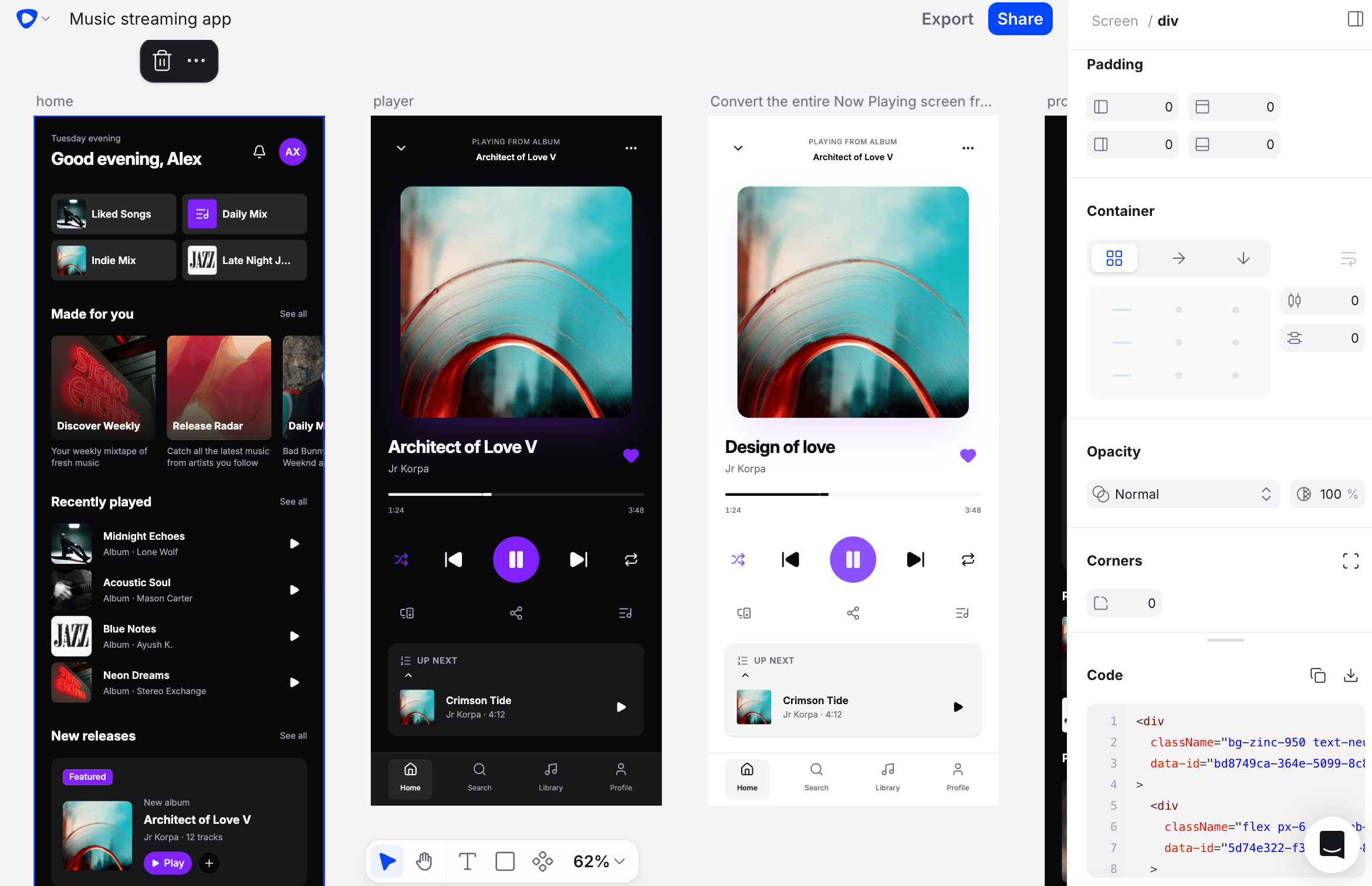
Two ways to edit
- Manual visual editing
- Chat-based editing
Make changes directly on the canvas by selecting and modifying elements. This method works best for precise adjustments—moving a component, changing a color, updating a label, or tweaking spacing.
1
Select the element you want to change
Click on any component or layer in your design to select it.
2
Make your changes
Use the editor controls to adjust properties such as color, size, position, or text content.
3
Review the result
Your changes apply immediately on the canvas. Continue editing or move on to the next screen.
Edit just part of a screen
You don’t have to edit whole screens. Select a sub-element — a card, a button, a text label — and your chat prompt applies only to it, leaving the rest of the screen untouched.- Switch to Direct selection mode with Shift+V (or the dropdown on the Select toolbar button) to select the deepest element under your click. Press V for normal selection, or hold Cmd (Mac) / Ctrl (Windows) to use direct selection temporarily. Escape exits direct selection.
- Select sub-elements across multiple screens with Cmd+Shift — a single prompt can edit up to 6 screens per message.
Restore a previous version
Each AI generation in the chat history keeps its original result. If a screen has been edited or deleted since it was generated, its chat message shows a Restore button — Restore original to revert edits, or Restore / Restore all to bring back deleted screens. Use it to get back to a known-good state after an edit goes in the wrong direction. Hover over any message in the chat panel to see when it was sent. Recent messages show the time; older ones show how long ago they were sent (for example, “1 day ago”), with the full date and time in a tooltip.One-click actions
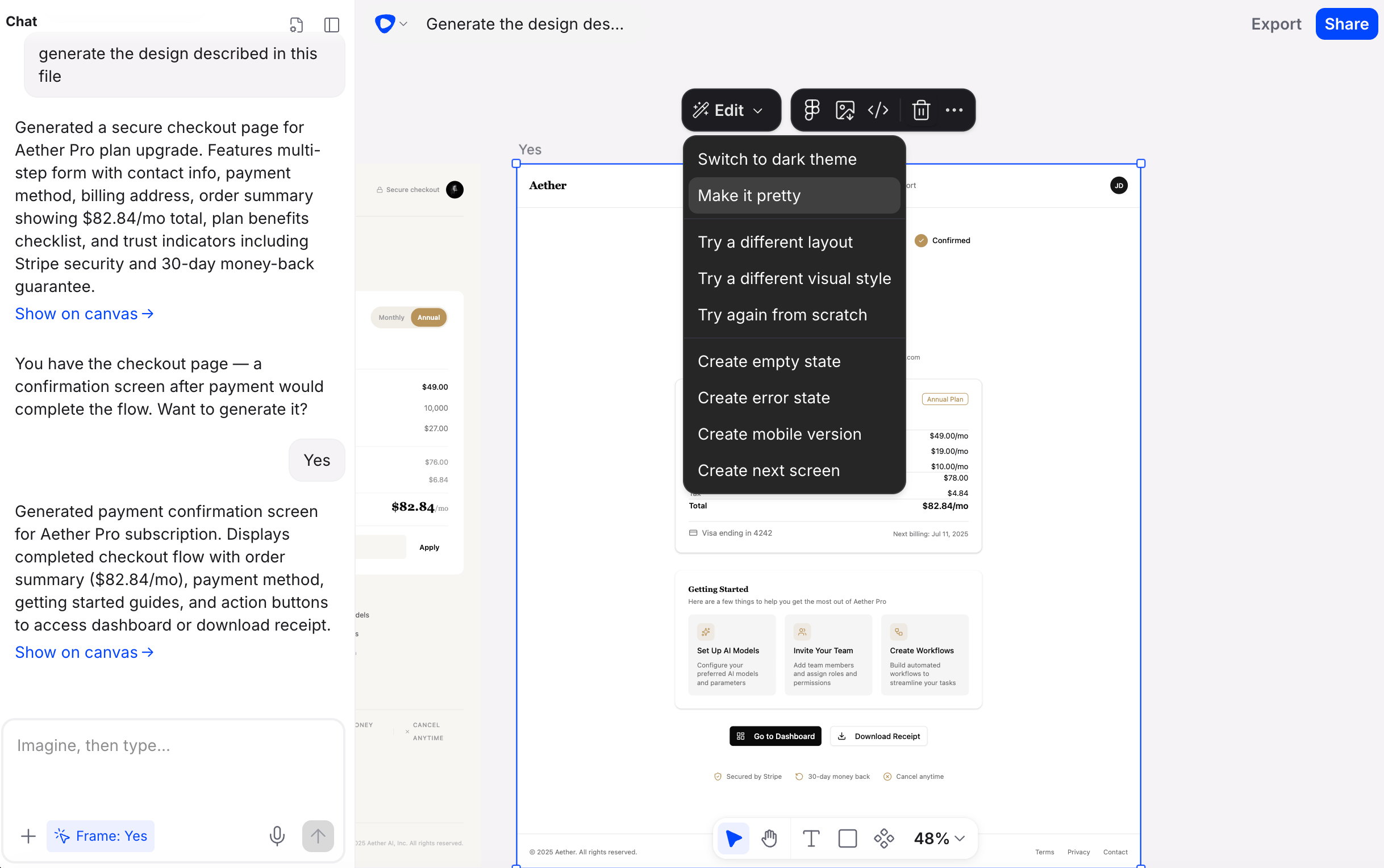
- Try again from scratch — ask Flowstep to produce a fresh version of the current screen with a different layout or visual direction.
- Show the next screen — ask Flowstep to generate what logically comes next in the user flow.
- Make it pretty — adjust spacing, alignment, and colors across the design. Layout stays the same.