Documentation Index

Fetch the complete documentation index at: https://docs.flowstep.ai/llms.txt

Use this file to discover all available pages before exploring further.

If you’re on a paid Flowstep plan, you receive an invoice automatically after every billing cycle. Invoices are generated and stored through Stripe, and you can download them at any time directly from your account dashboard.

How to find your invoices

1

Open your account dashboard

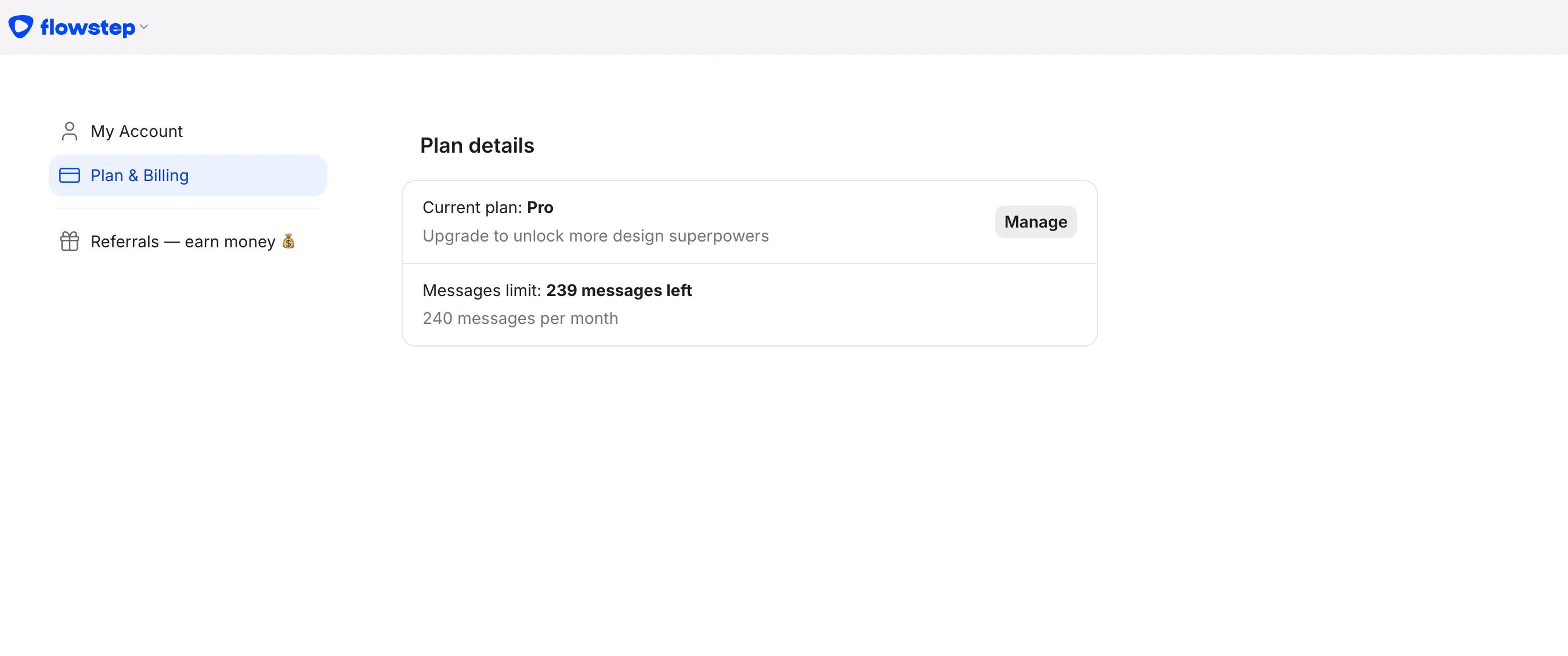
Sign in to Flowstep and navigate to your account settings. Look for the Billing section in the sidebar or account menu.
2

Go to the billing section

In the Billing section, locate the invoice history. Flowstep uses Stripe to manage payments, so your invoices are displayed through the Stripe billing portal.
3

Download an invoice

Find the billing cycle you need and click the download link next to it. Your invoice will download as a PDF.

Who receives invoices

All paid plan subscribers receive invoices automatically. You do not need to request them manually — Flowstep generates and stores each invoice as soon as a payment is processed. Free plan users do not receive invoices, as there are no charges on the free tier.

Questions about a charge

If you see a charge you don’t recognize or have a question about an invoice, check your billing cycle dates in the dashboard. For further help, refer to the Billing page or contact Flowstep support.